

⌨️ 20 Essential Computer Shortcuts Every Student Should Know (Save Hours of Time!)
How much time do you spend moving your hand from the keyboard to the mouse, clicking through menus, and searching for buttons? If you're like most students, it adds up to hours of wasted time every week.
The difference between an average computer user and a highly productive one isn't a faster laptop—it's keyboard shortcuts. Whether you are writing a lengthy Computer Studies assignment, researching online for your MSCE exams, or managing files for your projects, mastering these shortcuts will make you faster, more efficient, and honestly, look like a total tech pro.
Here are the 20 most essential computer shortcuts every Malawian student needs to master today.
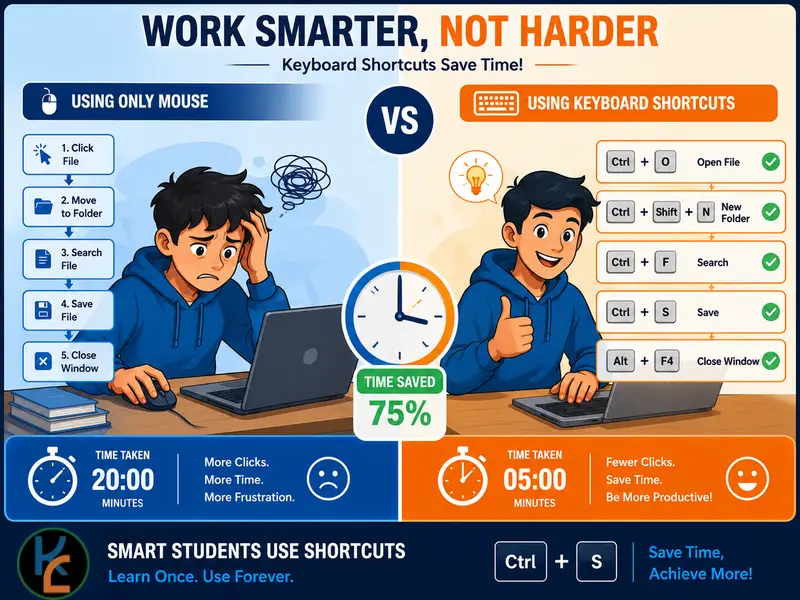
Work smarter, not harder.
🌍 The "Universal" Shortcuts (Work Almost Everywhere)
These are the absolute basics. If you only learn five shortcuts in your life, make it these.
- Ctrl + C (Copy) / Ctrl + V (Paste)
The foundation of digital productivity. Highlight text or a file, copy it, and paste it anywhere. - Ctrl + X (Cut)
Removes selected text/file and copies it to clipboard. Perfect for moving things around. - Ctrl + Z (Undo) / Ctrl + Y (Redo)
Made a mistake? Ctrl+Z is your time machine. Accidentally undid something good? Ctrl+Y brings it back. - Ctrl + A (Select All)
Instantly highlights all text in a document or all files in a folder. Perfect for quick copying or deleting. - Alt + Tab (Switch Windows)
Hold Alt and tap Tab to instantly flip between your open programs. No more clicking the taskbar! - Ctrl + S (Save)
Get into the habit of tapping this every 5 minutes. It will save you from the heartbreak of a power outage or system crash.

🌐 Web Browser Shortcuts (For Research & Online Learning)
When you have 10 tabs open for your research project, these shortcuts are lifesavers.
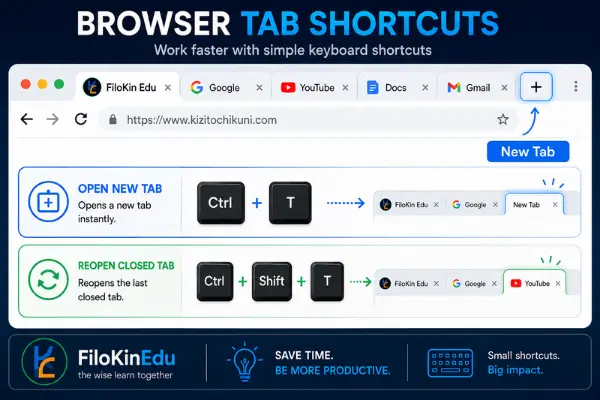
- Ctrl + T (Open New Tab)
Opens a fresh tab instantly without touching the mouse. - Ctrl + Shift + T (Reopen Closed Tab)
Accidentally closed an important research tab? This magical shortcut brings it back to life. - Ctrl + W (Close Current Tab)
Quickly close the tab you're currently viewing without reaching for the mouse. - Ctrl + F (Find on Page)
Stop scrolling! Type a keyword, and the browser will instantly highlight every instance of it on the page. - Ctrl + L (Highlight Address Bar)
Instantly jumps your cursor to the URL bar so you can type a new website or search term immediately. - Ctrl + D (Bookmark Page)
Save important research pages instantly for later reference.
📄 Document & Typing Shortcuts (Word Processors)
Whether you use Microsoft Word, Google Docs, or LibreOffice, these will speed up your essay writing.
- Ctrl + B (Bold) / Ctrl + I (Italic) / Ctrl + U (Underline)
Format text on the fly without navigating the top ribbon menu. - Ctrl + Backspace (Delete Entire Word)
Instead of tapping Backspace 10 times to delete a word, this deletes the whole word in one tap. - Ctrl + Home / Ctrl + End
Instantly jumps your cursor to the very beginning or the very end of a long document. - Ctrl + P (Print)
Opens the print dialog instantly when you're ready to print your assignment. - F2 (Rename File/Folder)
Select a file and press F2 to rename it instantly.
🖥️ System & File Management Shortcuts
- Windows Key + D (Show Desktop)
Instantly minimizes all open windows to show your desktop. Press it again to restore windows. - Windows Key + E (Open File Explorer)
Instantly opens your computer's file manager to organize your school folders. - Shift + Delete (Permanent Delete)
Deletes a file permanently without sending it to the Recycle Bin. Warning: Use this carefully! - Windows Key + L (Lock Computer)
Instantly locks your computer when you need to step away. Essential for computer lab security!
💡 Pro Tip: How to Actually Learn These
🎯 The 2-Shortcut Rule
Don't try to memorize all 20 today. Pick two new shortcuts each week and force yourself to use them. Within a month, using the mouse for basic tasks will feel slow and unnatural.
️ Common Mistakes to Avoid
- Not saving your work: Ctrl+S should be muscle memory. Save every 5 minutes!
- Using mouse for everything: Challenge yourself to complete one task using only keyboard shortcuts.
- Forgetting Undo: Ctrl+Z is your best friend. Don't be afraid to use it.
💻 Boost Your Tech Skills With Free Resources
Want to learn more about computers, coding, or digital literacy? Explore our free Computer Studies notes and tech guides tailored for Malawian students.
Browse Computer Studies Resources
✅ 100% Free • JCE & MSCE Syllabus Aligned • Downloadable PDFs
🚀 Final Thought
Technology is meant to make our lives easier, but only if we know how to use it efficiently. Mastering these shortcuts is a small investment of time that will pay off with hundreds of saved hours throughout your academic and professional career.
Start with just two shortcuts today. In a month, you'll wonder how you ever lived without them.
Which shortcut are you going to try first? Share your favorite shortcuts in the comments below!
— Kizito Chikuni, Educator & Developer



Sign in securely with Google to join the discussion.