
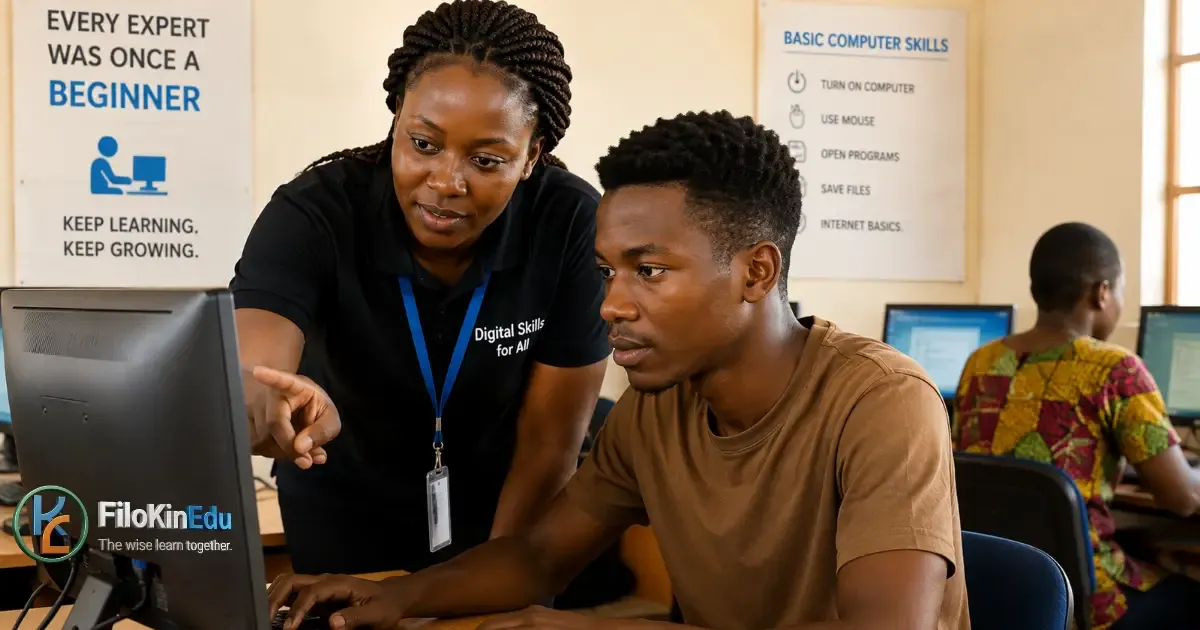
How to Learn Computer Skills as a Beginner: A Complete Guide (2026)
Let's be honest—computers can feel overwhelming when you're just starting out. You sit down, stare at the screen, and suddenly everything seems complicated.
But here's the truth: every expert was once a beginner.
Whether you're a student preparing for exams, a teacher wanting to create better lessons, a job seeker looking to boost your CV, or just someone who wants to feel more confident with technology, learning basic computer skills is one of the best investments you can make.
The good news? You don't need to be a tech genius to get started. With the right approach and regular practice, anyone can learn.
This guide walks you through exactly what to learn first, how to practice effectively, and how to build confidence step by step.

🤔 Why Should You Learn Computer Skills?
Before we dive into the "how," let's talk about the "why."
Think about your daily life:
- As a student: You need to research topics, type assignments, access online learning platforms, and communicate with teachers.
- As a teacher: You prepare lesson plans, create teaching materials, record marks, and access educational resources.
- As a job seeker: Most employers expect basic computer literacy. You'll need to create a CV, search for jobs online, and communicate via email.
- As a small business owner: You manage records, communicate with customers, and handle basic finances.
Even if you never plan to work in technology, basic computer skills make everyday tasks easier and faster.
📚 Step-by-Step: What to Learn First
Step 1: Get Comfortable With the Computer Itself
If you've never used a computer before, don't jump straight into complicated software. Start by understanding what you're working with.
Learn the basic parts:
- Monitor (the screen)
- Keyboard
- Mouse or touchpad
- System unit (the main box)
- USB ports (for connecting devices)
- Power button
Understand the difference between:
- Hardware = Physical parts you can touch
- Software = Programs that run on the computer (like Microsoft Word or your web browser)
This might sound basic, but knowing these fundamentals makes everything else easier to understand.
Step 2: Master the Mouse and Keyboard
These are your main tools for interacting with the computer. Spend time practicing:
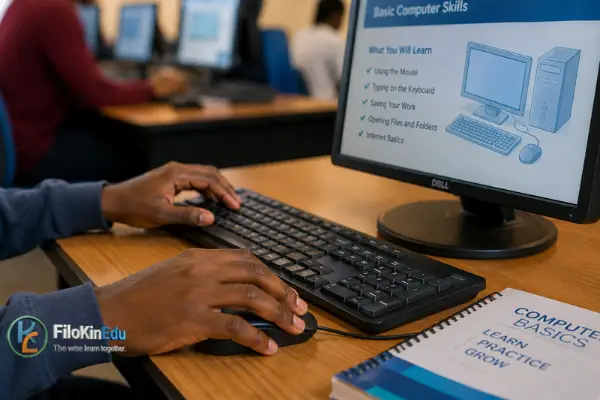
Mouse skills:
- Moving the cursor smoothly
- Single-clicking
- Double-clicking
- Right-clicking (this opens helpful menus!)
- Dragging and dropping
- Scrolling
Keyboard basics:
- Typing letters and numbers
- Using the Spacebar
- Using Backspace and Delete
- Using Enter to create new lines
- Using Shift for capital letters
Essential keyboard shortcuts (start with these):
- Ctrl + C = Copy
- Ctrl + V = Paste
- Ctrl + X = Cut
- Ctrl + Z = Undo
- Ctrl + S = Save
- Ctrl + A = Select all
Pro tip: Don't try to memorize all shortcuts at once. Learn 2-3 and use them until they become automatic, then add more.
Step 3: Learn File Management (This Saves SO Much Time)
One of the most frustrating things for beginners is losing files or not knowing where anything is saved.
Learn how to:
- Create folders
- Name and rename files
- Copy and move files between folders
- Delete files (and restore them from Recycle Bin if needed)
- Search for files
- Save files to USB drives
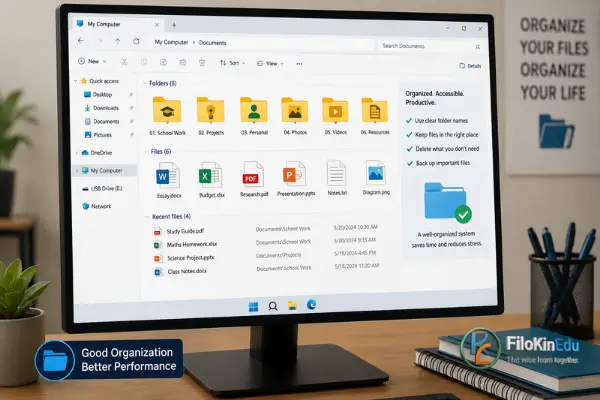
Example of good organization for a student:
📁 School
─ 📁 Mathematics
└─ Assignments
└─ 📁 Past Papers
└─ English
└─ Science
└─ Projects
Trust me—future you will thank present you for staying organized!
Step 4: Learn Word Processing
Word processors like Microsoft Word or LibreOffice Writer are essential for creating documents.
Start with these basics:
- Typing and formatting text
- Changing font size and style
- Making text bold, italic, or underlined
- Creating headings
- Aligning text (left, center, right)
- Creating bulleted and numbered lists
- Inserting images
- Creating simple tables
- Saving documents
- Printing
- Exporting as PDF
Once you're comfortable with these, you can create assignments, letters, CVs, reports, and more.
Step 5: Learn to Use the Internet
The internet is a powerful learning tool—but you need to know how to use it effectively.
Essential internet skills:
- Opening a web browser (Chrome, Firefox, Edge, etc.)
- Using search engines (Google, Bing)
- Opening multiple tabs
- Downloading files
- Bookmarking useful websites
- Filling out online forms
️ Important: Not everything online is true! Always check who published the information and whether it's current. Cross-check important facts with multiple reliable sources.
Step 6: Master Email
Email is still the most common form of professional communication.
You should know how to:
- Create an email account (Gmail, Outlook, Yahoo)
- Send and receive emails
- Reply and forward messages
- Attach files
- Download attachments
- Use CC and BCC properly
- Write clear subject lines
- Organize your inbox
Email safety tip: Never open suspicious attachments or click links from people you don't know. When in doubt, delete it.
Step 7: Learn Online Safety
This isn't optional—it's essential.
Protect yourself by learning to:
- Create strong passwords (mix letters, numbers, and symbols)
- Never share passwords
- Recognize phishing scams (fake emails trying to steal your information)
- Keep software updated
- Use trusted websites only
- Log out of accounts on shared computers
- Back up important files regularly
🚨 Red flags to watch for: Emails asking for passwords, "urgent" messages from "banks," offers that seem too good to be true, and requests for personal information.
How to Actually Learn (Not Just Watch)
Here's where most beginners go wrong: they watch tutorial after tutorial but never actually do anything.
Watching ≠ Learning
You learn by doing.
The Right Way to Practice:
| ❌ Wrong Approach | ✅ Right Approach |
|---|---|
| Watch 10 videos about Word | Watch 1 video, then create a document yourself |
| Read about file management | Create folders and organize your own files |
| Memorize keyboard shortcuts | Use 2-3 shortcuts daily until they're automatic |
📅 A Realistic Learning Schedule
You don't need to learn everything in one week. Here's a simple 8-week plan:
- Week 1: Computer basics, mouse, and keyboard
- Week 2: Typing practice and basic shortcuts
- Week 3: File and folder management
- Week 4: Word processing basics
- Week 5: Internet browsing and searching
- Week 6: Email setup and usage
- Week 7: Online safety and security
- Week 8: Spreadsheets and presentations (optional)
Remember: This is just a guide. Go at your own pace. Some weeks might take longer, and that's okay!
Free Learning Resources
You don't need expensive courses to learn computer skills.
Free options include:
- YouTube tutorials (search for "beginner computer skills")
- Free online courses (Khan Academy, GCFGlobal)
- Practice exercises on your own computer
- Asking tech-savvy friends or family members
- Library computer classes (if available in your area)
📚 Structured Learning Path
If you prefer a step-by-step course with clear lessons and practical exercises, check out our Basic Computer Skills course.
✅ Beginner-friendly • Practical exercises • Learn at your own pace
It's Okay to Make Mistakes
Let me tell you something important: everyone makes mistakes when learning computers.
You might:
- Accidentally delete a file
- Save something in the wrong folder
- Click the wrong button
- Feel confused by error messages
This is normal.
Every mistake is a learning opportunity. Ask yourself: "What happened? How can I fix it? How can I prevent this next time?"
Don't let fear of making mistakes stop you from trying. The only way to become confident is to practice—and practice means making mistakes along the way.
✅ Beginner Computer Skills Checklist
Use this checklist to track your progress. Don't rush—master each skill before moving to the next.
Basic Operations
- ☐ Turn computer on and shut down properly
- Use mouse and keyboard confidently
- ☐ Create, rename, and organize folders
- Save, find, copy, move, and delete files
Document Creation
- Type and format a document
- ☐ Create headings, lists, and tables
- ☐ Insert images
- ☐ Save and print documents
- Export as PDF
Internet & Communication
- Browse the internet
- ☐ Search for information effectively
- ☐ Send and receive emails
- ☐ Attach files to emails
- Download and upload files
Safety & Efficiency
- ☐ Use basic keyboard shortcuts
- Recognize suspicious links and messages
- ☐ Create strong passwords
- ☐ Back up important files
What's Next After Basics?
Once you're comfortable with the fundamentals, you can explore more advanced skills based on your goals:
- For students: Advanced Word, PowerPoint presentations, research skills
- For job seekers: Excel spreadsheets, professional email writing, CV creation
- For business owners: Accounting software, digital marketing, online banking
- For tech enthusiasts: Programming, web design, graphic design, data analysis
But here's the key: Master the basics first. Don't skip ahead just because advanced topics seem exciting. A strong foundation makes everything else easier.
Final Thoughts
You don't need to become a computer expert overnight.
Even 20-30 minutes of practice each day can transform your skills over time.
Learning computer skills is a journey, not a destination. Start small, be patient with yourself, and celebrate every small win.
Today's action step: Pick ONE skill from this guide and practice it for 15 minutes. That's it. Just start.
Tomorrow, do it again. And the next day. Consistency beats intensity every time.
Free Resources to Support Your Learning
Access free past papers, study guides, and educational materials to complement your computer skills learning.
✅ 100% Free • JCE & MSCE Materials • Downloadable PDFs
Remember: The wise learn together. Don't hesitate to ask for help, join study groups, or share what you've learned with others.
FiloKin Edu — The wise learn together.
Sign in securely with Google to join the discussion.