
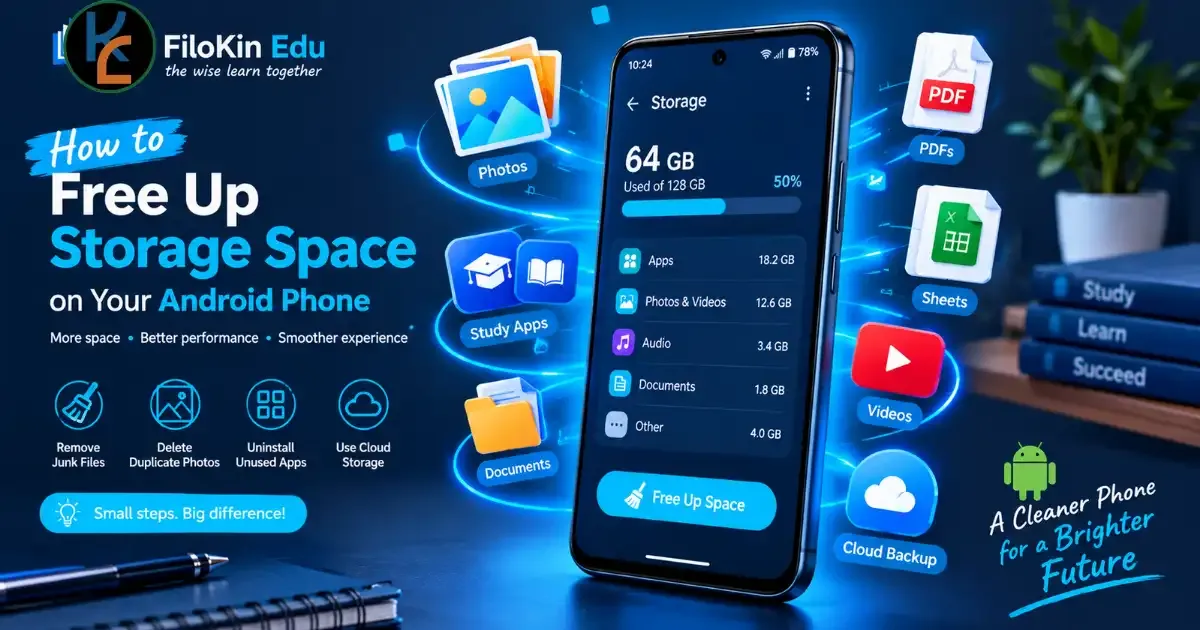
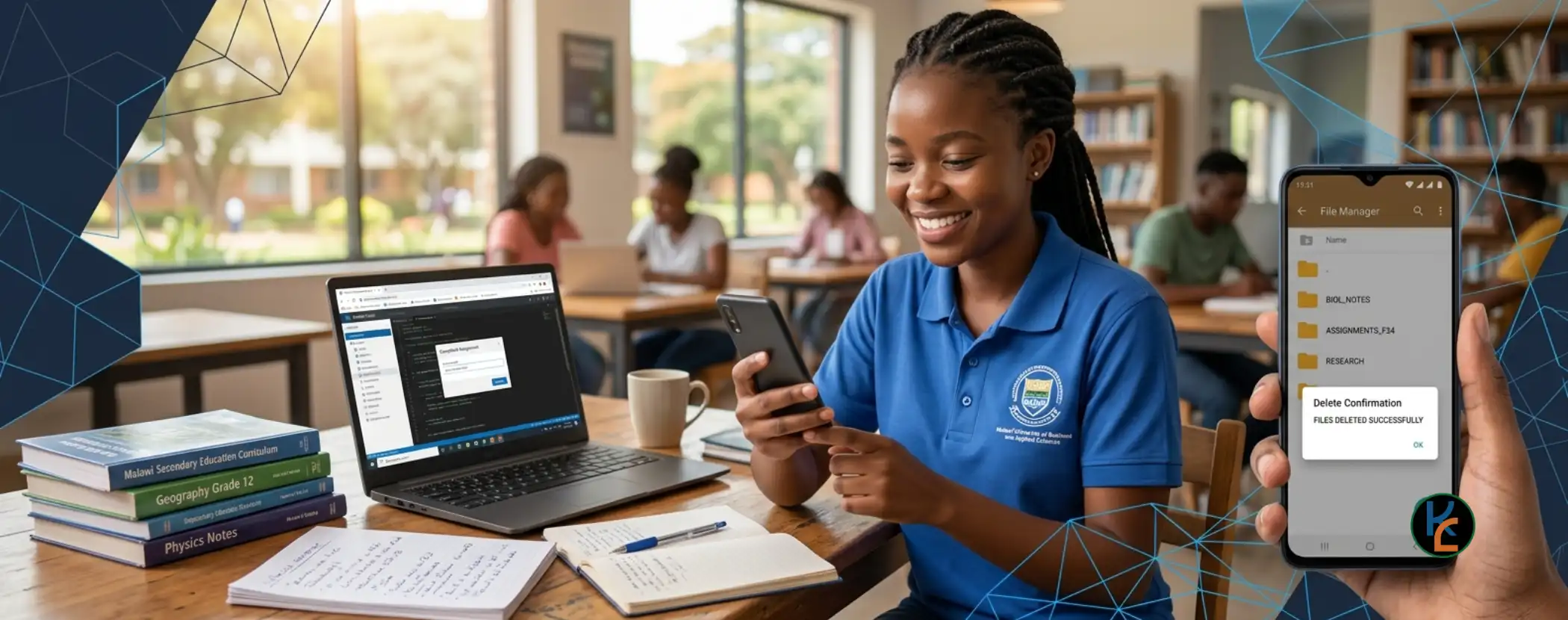
Keep your phone running smoothly for your studies by managing storage wisely.
Ways to Free Up Space on Android
To have no space for installing apps and taking pictures can be very annoying. Luckily, you may be able to free a pretty large amount of space without emptying your trash and getting rid of all personal files.
The way to find out what is eating up space can be different for different manufacturers and Android versions.
1. Open Here: Find Out What is Eating Up Space
Open:
Settings → Storage
or
Battery and device care → Device care
depending on your phone.
You should see a list of common storage categories such as:
- Apps
- Photos and videos
- Music and audio
- Downloads (e.g., MSCE past paper PDFs)
- Documents
- System
- Other files
Google recommends checking the storage section in Settings to see what is taking up space. Don't start deleting things just yet; we need to see what is actually taking up space in our phone memory.
2. First and Foremost: Remove Videos You Don't Need
A very common scenario where people end up with a full phone is their video files are just too big.
This can include photos and videos saved from messages (WhatsApp, Telegram study groups), clips recorded on your phone, downloaded videos, etc.
Before deleting anything, make sure that you don't have any important videos that are taking up a lot of space. If you use Google Photos, its storage management tool can help you delete videos you don't need. Also, backing up any recordings worth keeping is a good idea.
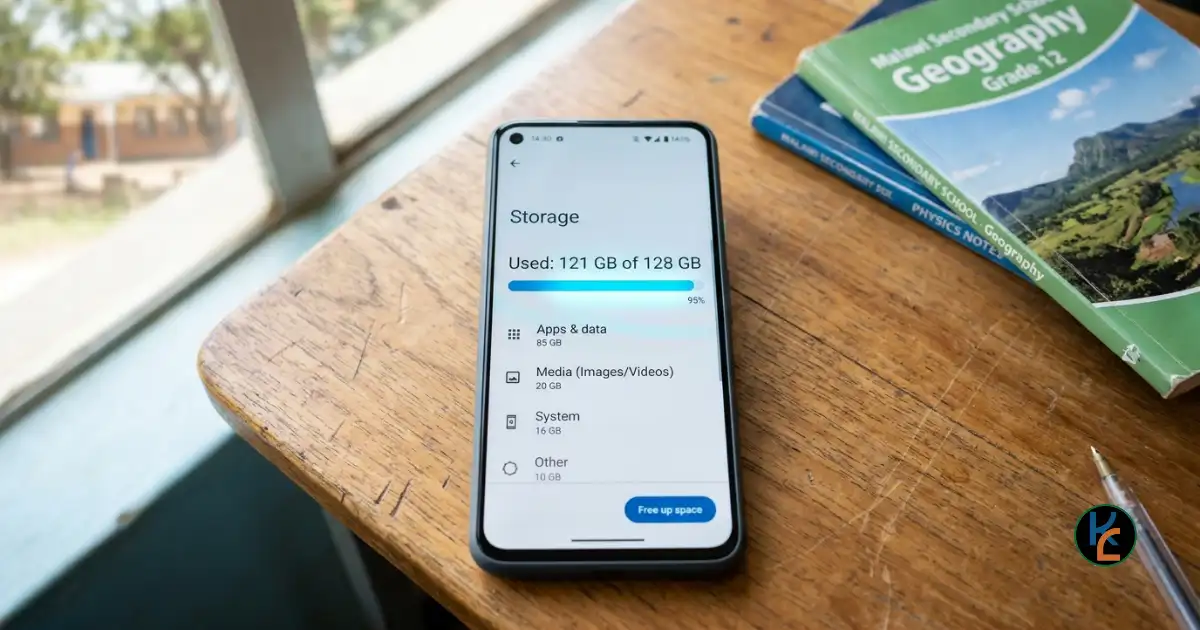
Always check your Storage settings first to identify the biggest space hogs.
3. Delete Duplicate Photos
Duplicate photos can pile up really fast, leaving you with hundreds of photos you don't need.
Search for:
- Screenshots
- Duplicate downloads
- Blurry pictures
- Useless memes
- Old social media photos
- Similar photos
Google Photos can also be used to delete duplicates efficiently.
4. Empty the Downloads Folder
Open your file manager and empty out the Downloads folder.
It's amazing how much clutter builds up here, in the form of:
- Older PDFs
- APK files
- Documents
- Pictures and Videos
- Apps you no longer use
- Stray logs and files you downloaded once and never opened
Remove anything you don't need. If there are certain documents you want to keep, beware not to delete them.
5. Remove Unneeded Apps
Apps you don't use not only take up space, they also run in the background and drain your battery.
Navigate to:
Settings → Apps
or
Google Play Store → Profile → Manage apps & device
to remove the apps you no longer need. Keep in mind that Android will automatically archive some unused apps, preserving their data.
6. Clear App Caches
Caches can take up a good amount of memory in apps. To free up some more space, navigate to:
Settings → Apps → [App name] → Storage → Clear cache
Caches usually don't take up much space, but you might find that some apps behave differently when the cache is cleared, as they need to build it up again.
⚠️ Warning:
Avoid the Clear storage/data option, as it will delete all the data stored in that particular app, including your WhatsApp messages and login details.
7. Check What Takes Up Space in WhatsApp
WhatsApp and similar messaging apps are known for having lots of photos and videos. Go to the storage management area in your WhatsApp (Settings → Storage and Data → Manage Storage) and delete any large videos, photos, or other media you don't need.
8. Empty Your Trash / Recently Deleted
Some apps don't actually delete files when you press delete. They send the files to the trash / recently deleted folder.
Make sure to empty these folders, as they tend to fill up really fast and take up space for 30 days or more.
9. Back Up Photos and Move Them Somewhere Else
If your phone holds important photos, make sure you back them up somewhere safe.
A computer or a cloud service would be a good place to keep your data. You can also carry over documents, photos, and videos to your computer, then delete them from your phone.
💡 Pro Tip for Tech-Savvy Students:
Instead of risky third-party cleaners, use secure, open-source tools like Syncthing to safely and privately sync your important study documents and photos directly to your computer or external drive over your local network.
Google also has a built-in Android backup tool for certain types of your data.
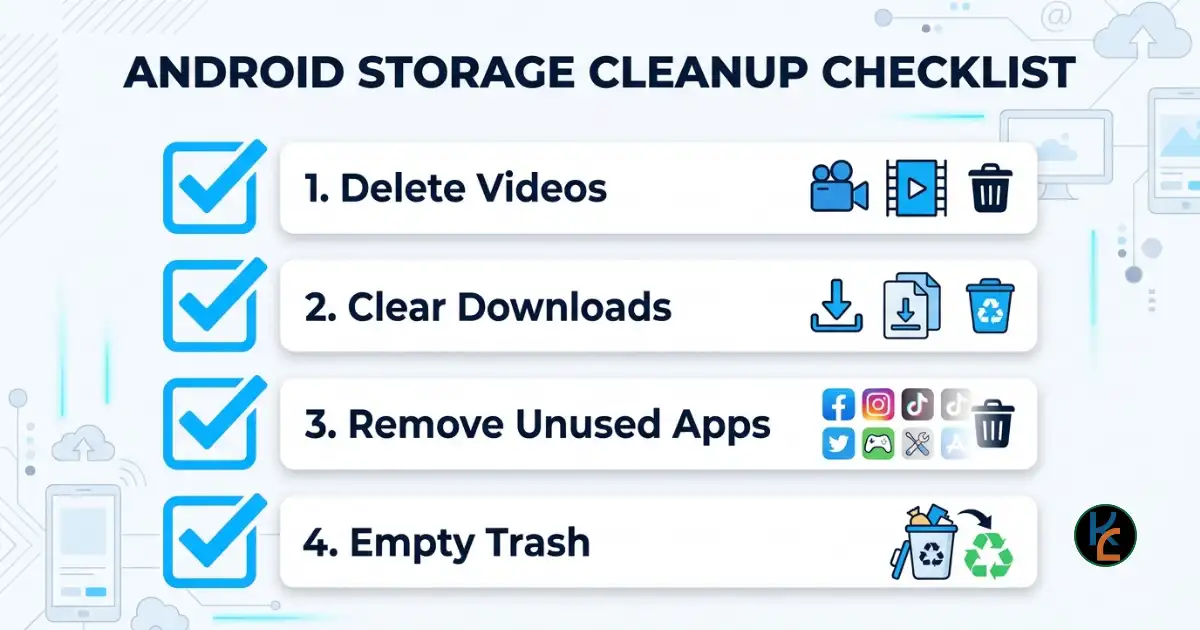
Follow this quick checklist to systematically free up your Android storage.
10. Do Not Install Any "Storage Cleaner" Apps
The built-in apps are available for your storage management. If you still want to use a third-party app, find one that doesn't advertise it will «make your phone 10x faster!»
Some of these apps do more harm than good, display intrusive ads, and may even pose a security threat to your personal data.
How Much Space Should I Leave On My Android Phone?
There's really no hard rule about the ideal amount. Google recommends leaving at least 10% of your storage free.
This means that if your phone has 20 GB on it, you should leave 2 GB free. If your phone is full, it's a good idea to free up some space right away to prevent system slowdowns.
Quick Summary
Let's go over everything you need to do to free up space on your Android phone. You should try the following:
- ☐ Delete all unnecessary videos
- ☐ Clear unnecessary photos
- ☐ Clear the Downloads folder
- ☐ Delete unused apps
- ☐ Clear the caches of your apps
- ☐ Remove WhatsApp photos and videos you don't need
- ☐ Empty out the Trash folder
- ☐ Transfer pictures or documents to your computer
- ☐ Leave some storage space available
Conclusion
In the end, what matters to prevent your phone from filling up is knowing exactly what is eating up space, and keeping it under control.
To begin with, you should remove any large video files you don't need. After, search for duplicate photos and delete them. Clear out the Downloads folder, remove the cache from apps you don't need, and transfer documents and photos to your computer. All of these steps will free you up a great amount of space.
LEARN • REVISE • SUCCEED
FiloKin Edu — The wise learn together.
Sign in securely with Google to join the discussion.